If you have been running your business on QuickBooks Desktop for years, the idea of migrating to Intuit Enterprise Suite can feel like a significant lift. There are more moving parts than a standard software upgrade, and the stakes are high when your financial data is involved.
But here is the reality: the QuickBooks Desktop to Intuit Enterprise Suite migration is the most common upgrade path for businesses that have outgrown Desktop. When it is planned correctly, it tends to go smoothly. The challenges almost always come from poor preparation, not from the platform itself.
This guide walks you through the full process. You will learn what your migration path options are, what data transfers automatically, what you will need to redesign, how long it takes, and what to do at each stage to protect your data and set your new system up for long-term success.
Why QuickBooks Desktop Users Are Moving to Intuit Enterprise Suite
Intuit has been signaling for years that the future of its product line is in the cloud. Desktop versions are receiving fewer feature updates, and support for older versions ends on a rolling basis. For many businesses, staying on Desktop means falling behind on functionality, security patches, and integrations with modern tools.
But the bigger driver is usually growth. Businesses that started on Desktop Pro or Premier often hit a ceiling, especially when they are managing multiple locations, multiple entities, or a team that needs reliable concurrent access and cleaner reporting.
Intuit Enterprise Suite is designed for exactly this moment. It brings multi-entity management, up to 20 custom reporting dimensions, AI-powered financial automation, and a fully cloud-based infrastructure, all built on the QuickBooks foundation your team already knows. The learning curve is meaningfully lower than a traditional ERP, and a commissioned Forrester study projects up to 299% ROI over three years for Intuit Enterprise Suite customers.
Signs That You Are Ready to Move
- Your Desktop file is slowing down or approaching transaction limits
- You are managing multiple entities and reconciling manually across files
- Reporting requires too many exports and spreadsheet workarounds
- Remote or hybrid teams need concurrent access you cannot reliably provide in Desktop
- Your integrations are fragile or require workarounds that cloud tools would eliminate
- Intuit has sunset the Desktop version you are on, or will do so in the near term
If several of those apply, the question is not whether to migrate. It is how to do it right. Our overview of what Intuit Enterprise Suite is and who it is built for is a useful starting point if you are still evaluating the platform.
Your Two Migration Path Options
This is the decision that shapes everything else in a QuickBooks Desktop to Intuit Enterprise Suite migration. You have two primary paths, and they are not equivalent. Understanding the difference before you start will save you significant rework later.
Path A: Direct Migration (Intuit-Assisted Conversion)
Intuit provides a migration tool that converts your QuickBooks Desktop company file into an Intuit Enterprise Suite environment. This is the faster path and, for many businesses, the right one.
Best when: Your data is reasonably clean, your structure is straightforward, and you are not planning a major restructure of your chart of accounts or entity setup.
One important note: If your Desktop file exceeds 350,000 targets, you will need to condense your data before the conversion can run. OOTB handles this as part of the pre-migration process.
Path B: Clean-Start Migration
In a clean-start migration, you set up Intuit Enterprise Suite from scratch and bring over a defined set of historical data, rather than converting the entire Desktop file. This takes more time upfront but is often the better long-term choice.
Best when: Your Desktop file has years of accumulated workarounds. Your chart of accounts needs a rebuild. You are restructuring your entity setup as part of the move. Or you want to implement dimensions correctly from day one rather than retrofit them later.
With a clean-start migration, historical data is typically imported as summary journal entries or retained in a read-only Desktop file for reference. You start fresh in Intuit Enterprise Suite while keeping full access to your history.
Not sure which path fits your situation? Our data migration team reviews your Desktop file and gives you a clear recommendation before anything moves.
What Transfers and What Does Not
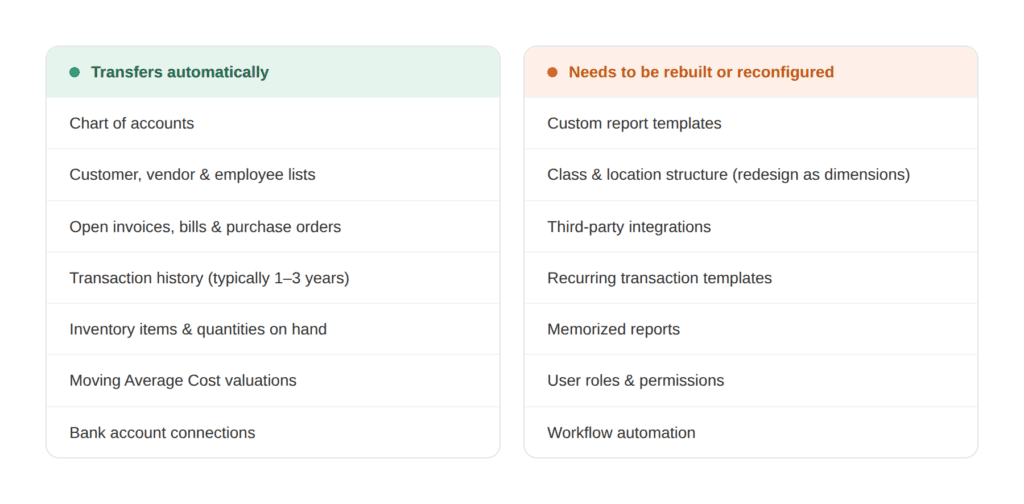
Understanding this distinction upfront helps you plan your timeline accurately and avoid surprises mid-project.
The Six-Step Migration Process
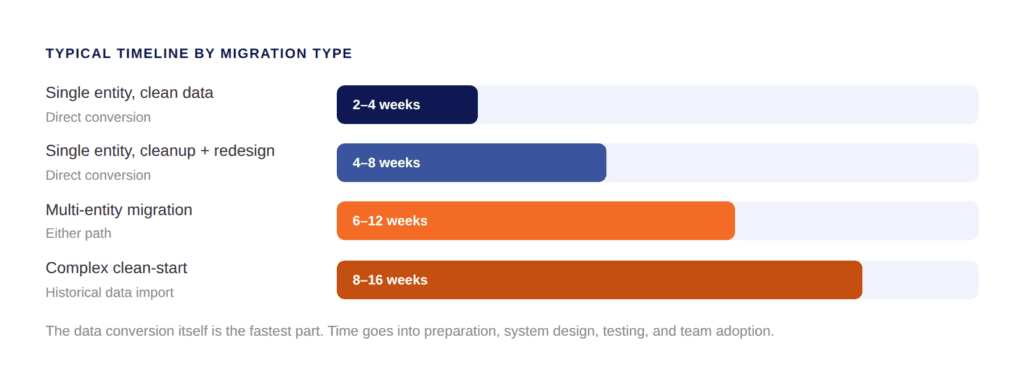
Whether you go with a direct conversion or a clean start, the migration follows the same core sequence. Skipping steps, especially the early ones, is where most problems originate.
 Step 1: Pre-Migration Assessment
Before any data moves, you need a clear picture of what you are working with. This means auditing your Desktop file for data integrity issues, duplicate records, and stale balances. You will also want to review your chart of accounts to determine whether to migrate it as-is or redesign it, document your current integrations and confirm cloud equivalents are available in Intuit Enterprise Suite, map your entity structure so the new system reflects how your business actually operates, and set a realistic go-live date with milestones worked backward from it.
This stage produces the blueprint for everything that follows. Businesses that rush past it almost always pay for it later.
Step 2: Data Cleanup
An Intuit Enterprise Suite migration will not fix bad data. It will carry bad data forward faster. Before migration begins, reconcile all bank and credit card accounts through your cutoff date, identify and merge duplicate customers, vendors, and items, clear out stale open transactions, close completed transactions, and run and save key reports from your Desktop file for post-migration comparison.
Clean data shortens your implementation timeline, reduces post-migration errors, and makes your Intuit Enterprise Suite reports trustworthy from day one. Our six-step data migration planning guide goes deeper on exactly what to clean and how to prioritize it.
Step 3: System Design
This is the step that separates a good migration from a great one, and it is where most self-managed migrations fall short.
Intuit Enterprise Suite replaces QuickBooks Desktop class tracking with a multi-dimensional reporting model. Instead of two tracking categories, you can configure up to 20 custom dimensions: department, project, location, cost center, funding source, or anything else that is meaningful to your business. This is a significant upgrade in reporting capability, but it requires intentional design. For a detailed look at how dimensions work and how to structure them, Intuit’s own multi-dimensional accounting explainer is worth reading before your design session.
System design decisions at this stage include your dimension architecture, chart of accounts structure, entity hierarchy for consolidation reporting, user roles and permissions per entity, and workflow automation for approvals, recurring transactions, and bank feeds. Decisions made during system design are difficult to reverse after go-live. For a deeper look at account structure specifically, our chart of accounts migration guide walks through the full redesign process.
Step 4: Data Migration
With clean data and a clear system design in place, the actual data migration can proceed. For a direct conversion, Intuit’s migration tool handles the conversion, and your OOTB team reviews the output and corrects any mapping errors. For a clean start, historical data is imported as structured journal entries, lists are loaded, and open transactions are entered as of your go-live date.
Either way, this step includes a full review of migrated data against your Desktop records. No discrepancy is too small to investigate at this stage.
Step 5: Testing and Validation
Before anyone in your organization starts working in the new system, the migrated data needs to be verified. Testing should cover your balance sheet comparison between Desktop and Intuit Enterprise Suite as of your cutover date, a profit and loss comparison for the current period, accounts receivable and accounts payable aging, bank reconciliation confirmation, open transaction verification, and user access testing.
Do not skip this step because the go-live date is approaching. A known discrepancy is always easier to fix before go-live than after your team has started entering new transactions.
Step 6: Go-Live and Post-Migration Support
Go-live is not the end of the migration. It is the beginning of adoption. The first few weeks in a new system are critical, and your team will need support as they build new habits and workflows.
Plan for role-specific training before go-live rather than a single all-hands session, a defined process for flagging and resolving questions in the first 30 days, a parallel period where Desktop is available in read-only mode for reference, and a post-migration review at 30 and 60 days to assess adoption and address any configuration adjustments. Our Intuit Enterprise Suite training page covers how OOTB structures post-go-live training so adoption actually sticks.
For a broader view of implementation as a whole, our Intuit Enterprise Suite implementation best practices guide covers the full process from readiness assessment through ongoing optimization.
What Makes the Desktop-to-IES Migration Different
Most migration guides treat all QuickBooks migrations the same way. The QuickBooks Desktop to Intuit Enterprise Suite migration has a few characteristics that make it genuinely distinct.
It Is Not a Simple Upgrade
When you upgrade from Desktop Pro to Desktop Enterprise, the file format is compatible and most of your setup carries over. Moving to Intuit Enterprise Suite is a platform change. QuickBooks Desktop is a local, file-based system. Intuit Enterprise Suite is a cloud-native platform with a fundamentally different architecture. The data converts, but the structure needs to be reconsidered rather than simply replicated.
Your Reporting Model Changes
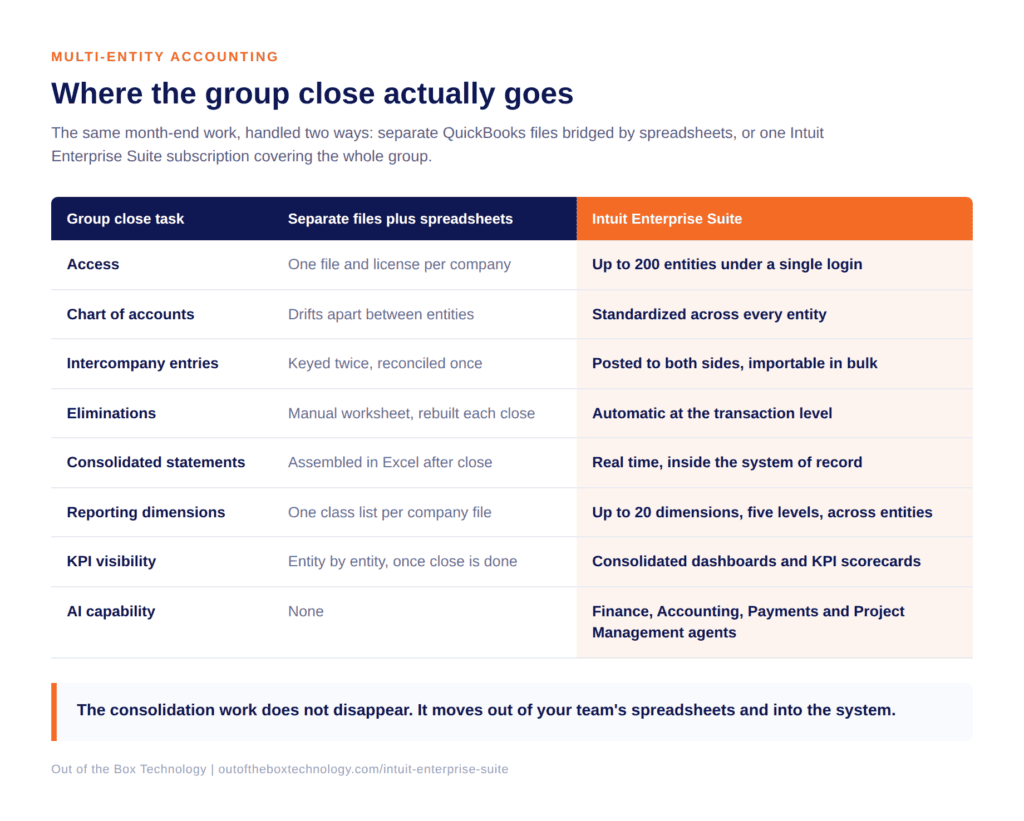
If you have been using classes and locations in Desktop, you will move to dimensions in Intuit Enterprise Suite. Dimensions are more powerful and more flexible, but they need to be configured deliberately. Importing your existing class structure directly is possible, but it is rarely the best outcome. The migration is the right moment to design your reporting model for where your business is going, not where it has been. If you manage multiple entities, our post on multi-entity accounting with Intuit Enterprise Suite explains how the consolidation model works in practice.
Your Integrations Need to Be Reconnected
Any third-party integrations connected to your Desktop file will need to be evaluated for cloud compatibility and reconnected or replaced. Most major business tools have cloud-native integrations with Intuit Enterprise Suite, including payroll, payments, CRM, and project management platforms. If you are relying on integrations that do not have cloud equivalents, this needs to be scoped before your migration date.
Moving Average Cost Inventory Can Be Preserved
This is a detail that matters significantly for businesses managing inventory. Historically, migrating from Desktop meant accepting a switch to FIFO costing. Intuit Enterprise Suite now supports the preservation of Moving Average Cost valuations from Desktop, which avoids disrupting your inventory cost history and maintains financial continuity. If this applies to your business, confirm it is configured correctly during the data migration step.
Common Mistakes That Derail Desktop-to-IES Migrations
Most migration problems are preventable. These are the patterns that show up consistently when migrations run into trouble.
According to Panorama Consulting’s annual ERP research, the three most consistent causes of implementation failure are poor data quality, inadequate change management, and inexperienced implementation teams. All three are fully within your control to address before migration begins.
Starting without a data audit. The single most common cause of post-migration problems is migrating a messy Desktop file. Duplicate records, stale balances, and unreconciled accounts create reporting errors that are much harder to trace after migration than before.
Treating the migration as a direct copy. The goal of a QuickBooks Desktop to Intuit Enterprise Suite migration is not to recreate Desktop in a cloud environment. It is to build a better system on a stronger foundation. Teams that carry over every class and workaround from Desktop often end up with an Intuit Enterprise Suite setup that does not take advantage of what the platform can actually do.
Underestimating training time. Intuit Enterprise Suite has a familiar interface, and many Desktop users adapt quickly. But dimensions, multi-entity reporting, and workflow automation are genuinely new concepts. Training should happen before go-live, not after the team is already in the system.
Skipping the validation period. The temptation to compress timelines is real, especially when a go-live date has been communicated internally. Post-migration discrepancies are harder to diagnose once new transactions have been entered.
Businesses that invest in the preparation and design phase tend to have much shorter adoption curves and fewer corrective engagements in the first six months post-go-live.
How OOTB Supports QuickBooks Desktop to Intuit Enterprise Suite Migrations
Out of the Box Technology has completed thousands of QuickBooks migrations across Desktop, QuickBooks Online Advanced, NetSuite, Sage, and other platforms. Our Intuit Enterprise Suite implementation partner engagements are led by accounting professionals, not just systems implementers.
On a typical Desktop-to-IES engagement, our team handles the pre-migration Desktop file audit and data cleanup, migration path recommendation, chart of accounts design and dimension architecture, entity structure mapping and configuration, data migration and post-migration validation, integration setup and reconnection, user role configuration and access controls, team training before and after go-live, and post-migration support and optimization.
Migration from QuickBooks Desktop is often available at no additional cost for eligible customers when paired with an Intuit Enterprise Suite subscription and a required consultation.
Ready to find out what your upgrade should actually look like?
Schedule a 30-minute Intuit Enterprise Suite Upgrade Assessment with our team. We’ll review your current setup and have a written proposal back to you within one week.
Related Reading
-
- Step-by-Step Guide to Preparing for an Intuit Enterprise Suite Migration
- Migrating from QuickBooks Online Advanced to Intuit Enterprise Suite
- Intuit Enterprise Suite Implementation Best Practices
- What Is Intuit Enterprise Suite? A Guide for Growing Businesses
- Intuit Enterprise Suite Spring 2026: What Is New
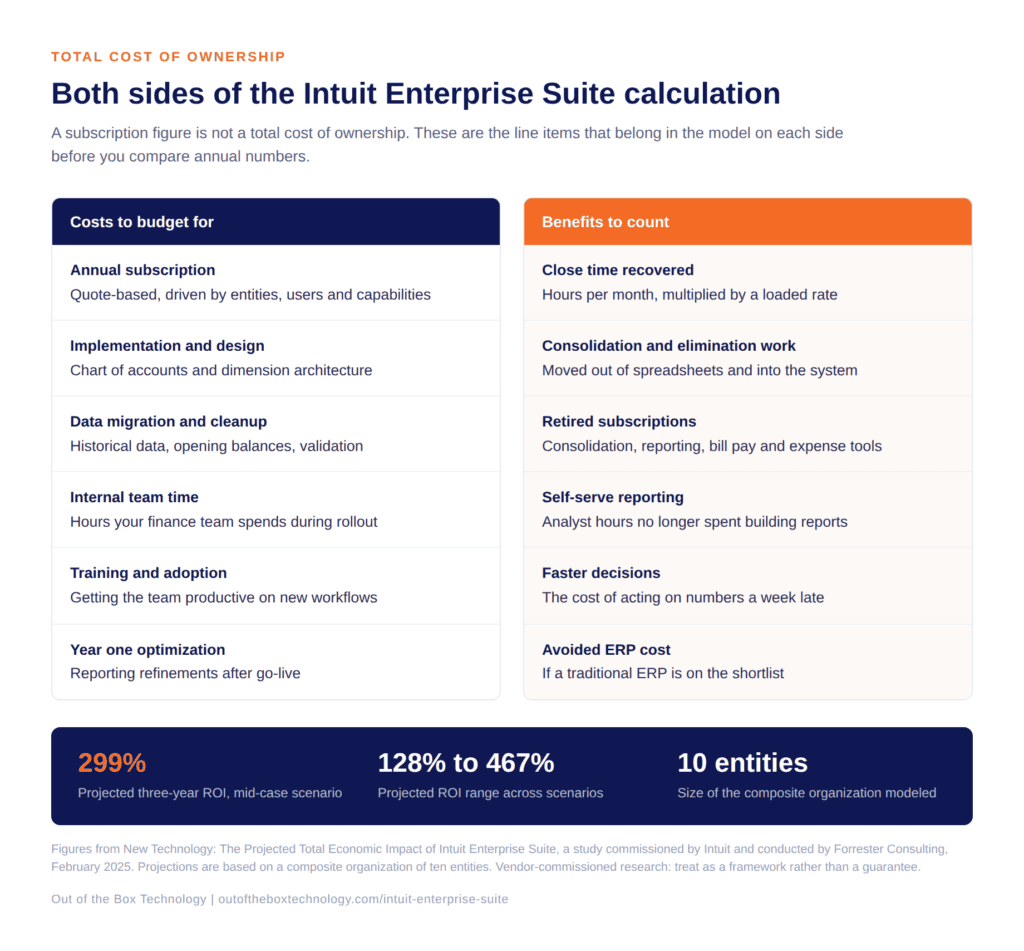 On the cost side, budget for implementation and system design, data migration and cleanup, and internal team time during the rollout. Add training and whatever ongoing optimization you expect in year one. Design work is the line item most often underestimated. Your chart of accounts and dimension architecture determine whether the reporting still works in five years, or whether it needs rebuilding in eighteen months.